How to Digitize a Ghost Patch
In the spirit of spooky season, I made this simple circular ghost patch with a wavy background from scratch.
This tutorial will walk you through how to digitize a similar design on your own. The principles can be used for any number of similar patches as well. My stitch out snagged on the left eye, but overall I am very happy with the result, see the final stitch out below.
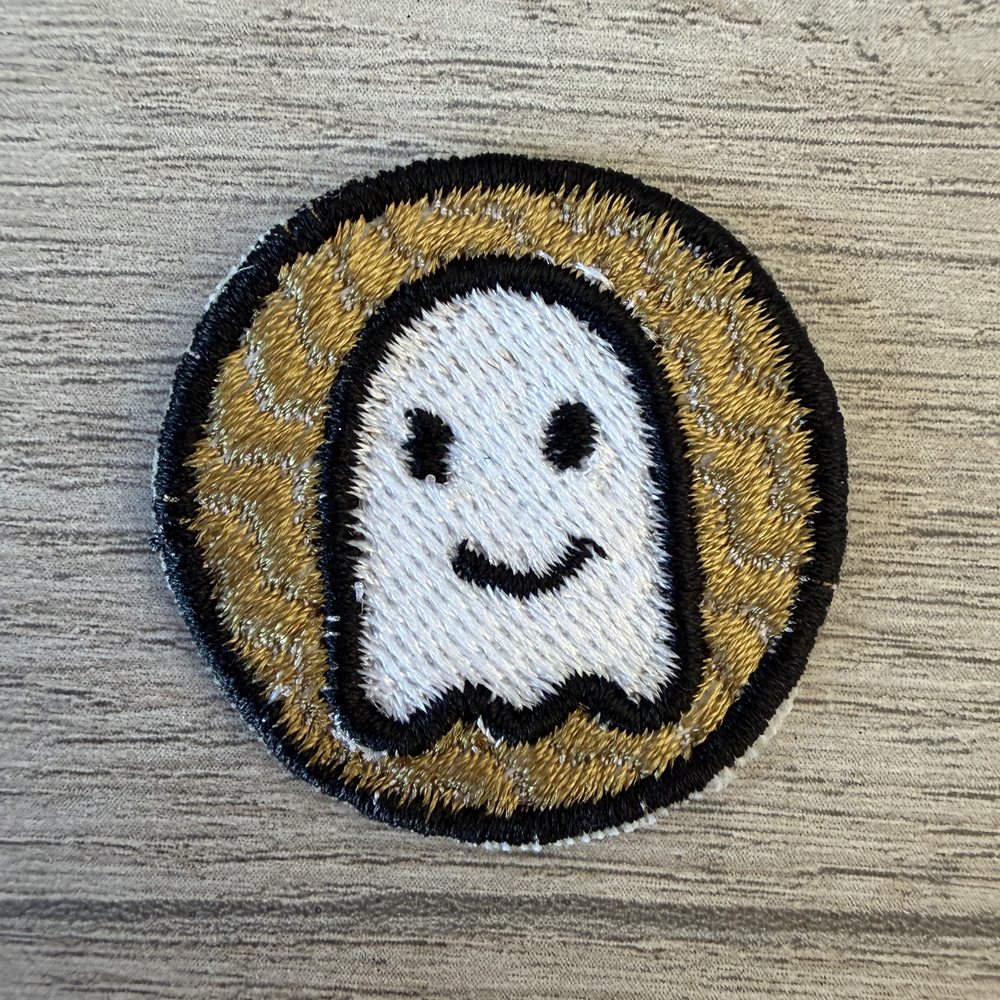
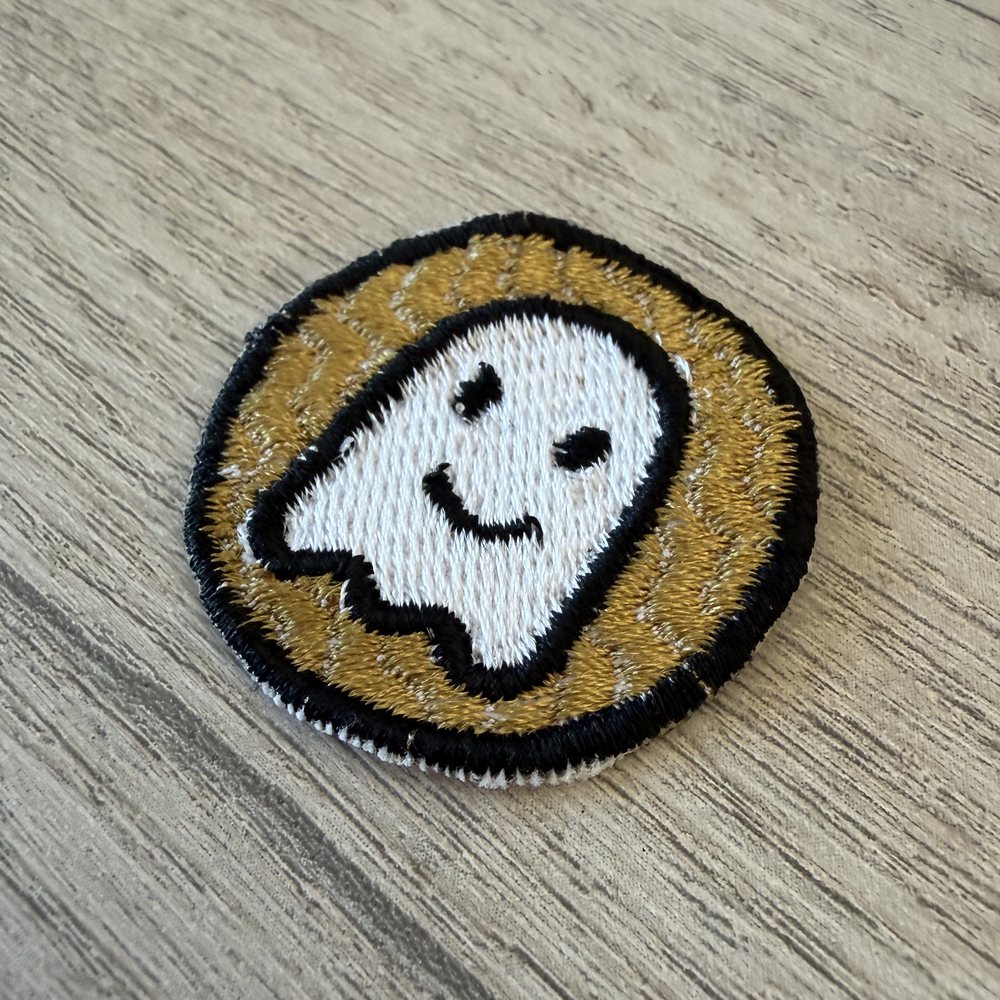

I built this design with stitch studio, you can edit your own version here:
Open ghost patch in Stitch Studio
Note that this file isn’t the exact one from the tutorial below. The tutorial walks through a very similar design, so expect small differences between the two.
Digitizing the ghost
Lets get started! There is a video of the design process here but you can definitely follow along with the text and photo instructions as well.
1. Draw a circle
Pick the Circle tool and drag out a circle for the top of the ghost’s head.
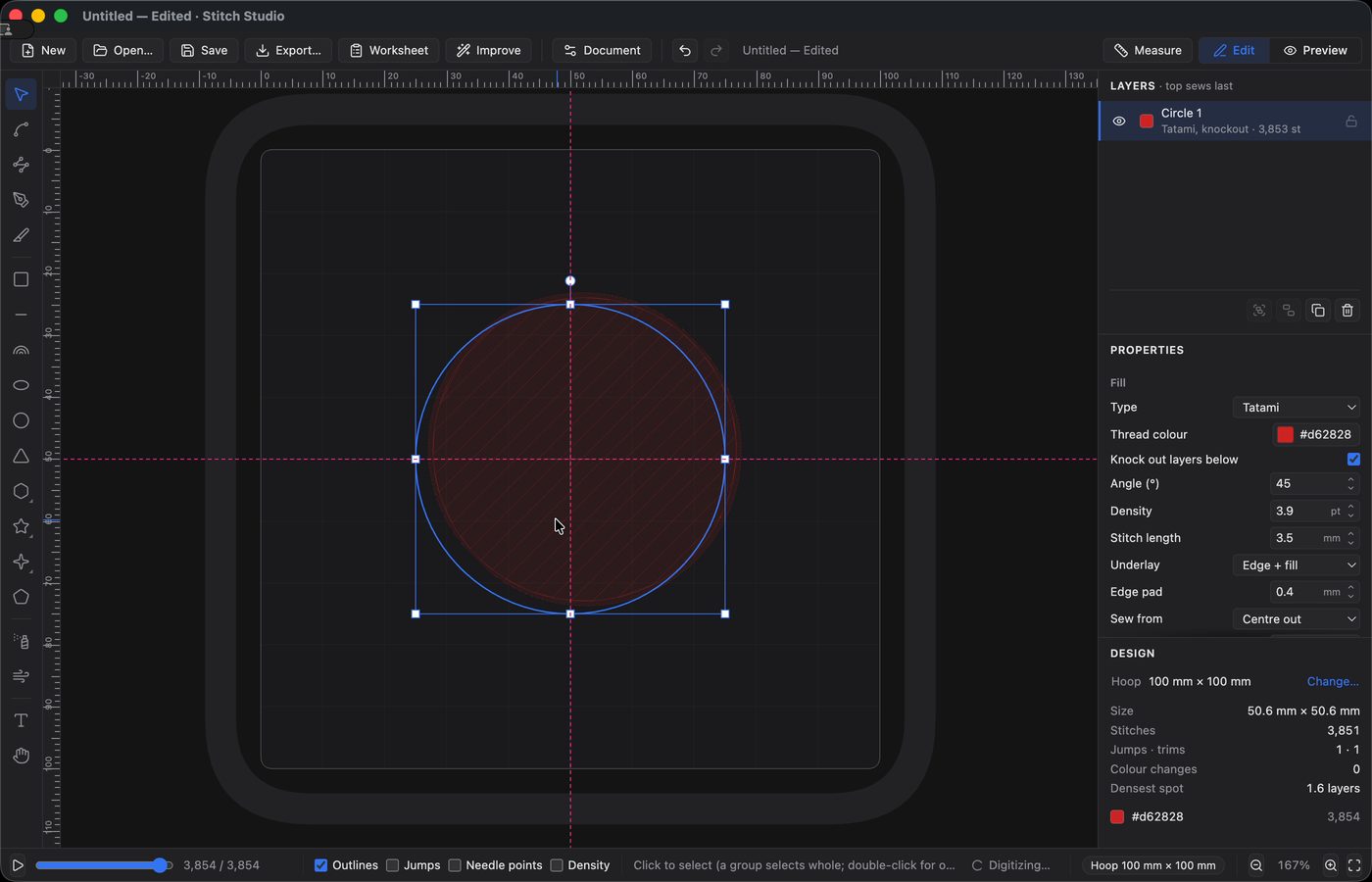
2. Add a rectangle for the body
Draw a rectangle starting across the middle of the circle. Its width should match the circle exactly, so the sides run straight down.
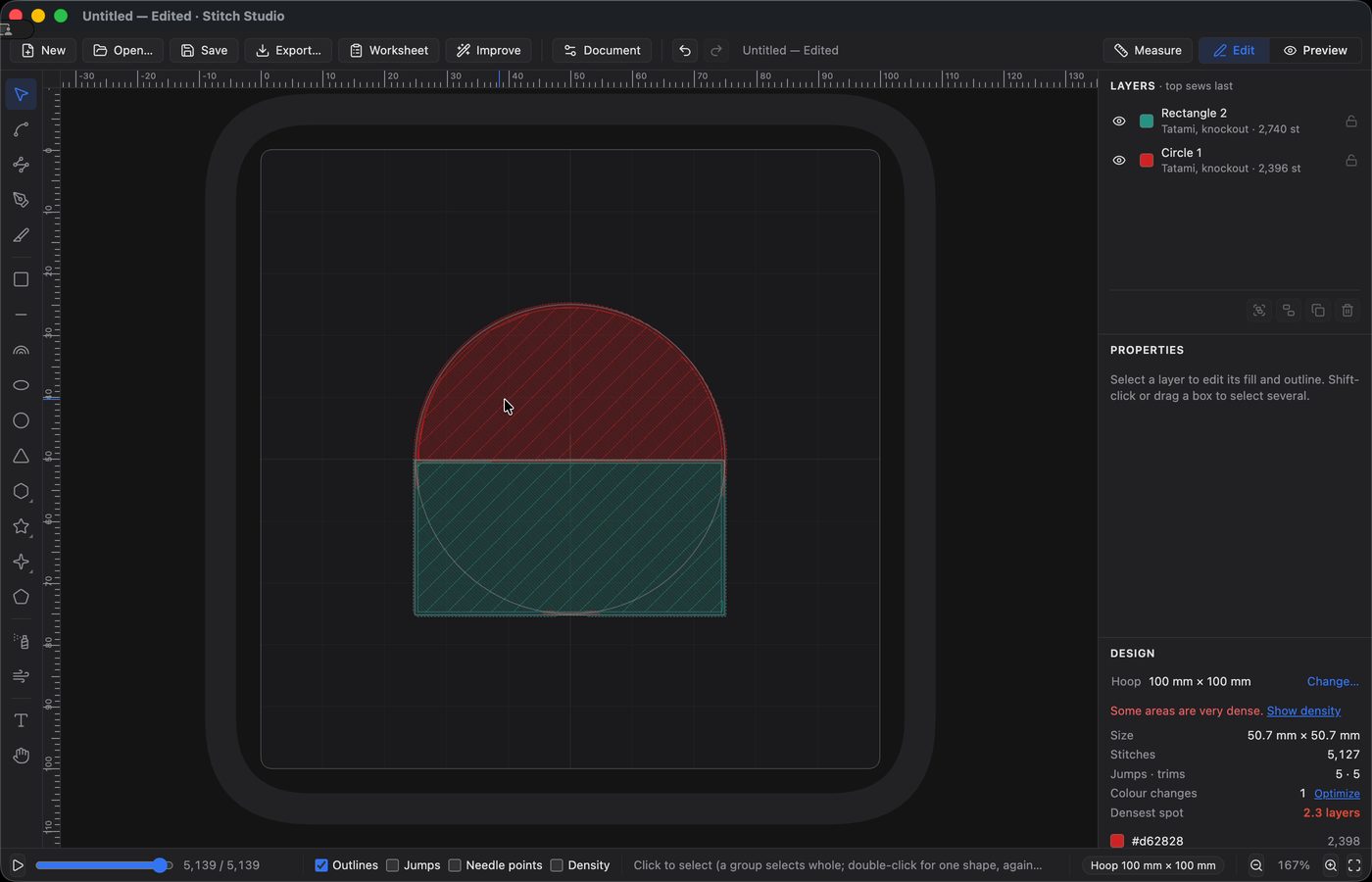
3. Add circles along the bottom
Draw one small circle at the bottom corner of the rectangle, duplicate it, and line up three of them across the bottom edge. These become the wavy hem.
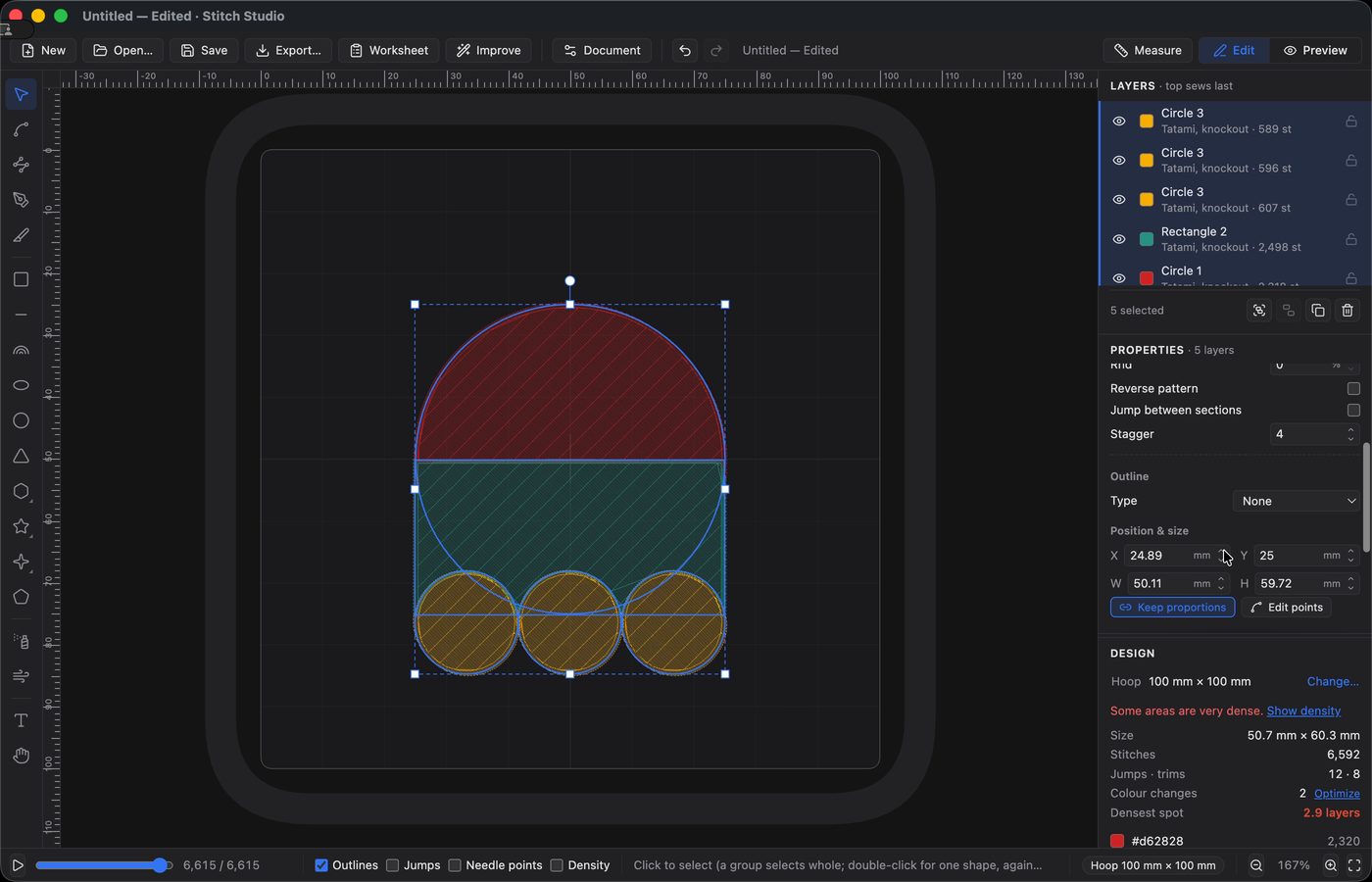
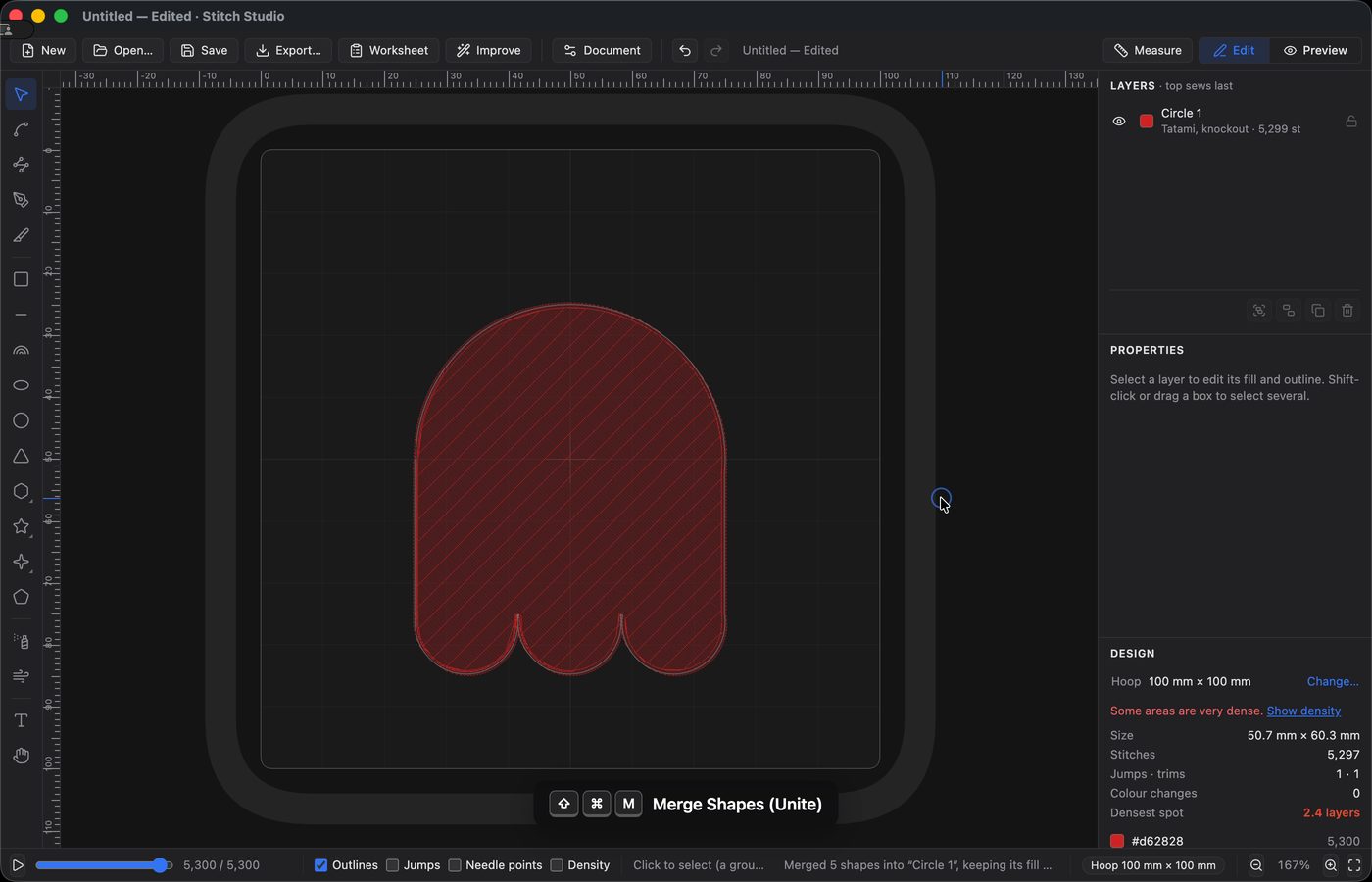
4. Merge the shapes
Select everything and use Merge Shapes (Unite) to turn the pieces into one ghost outline.
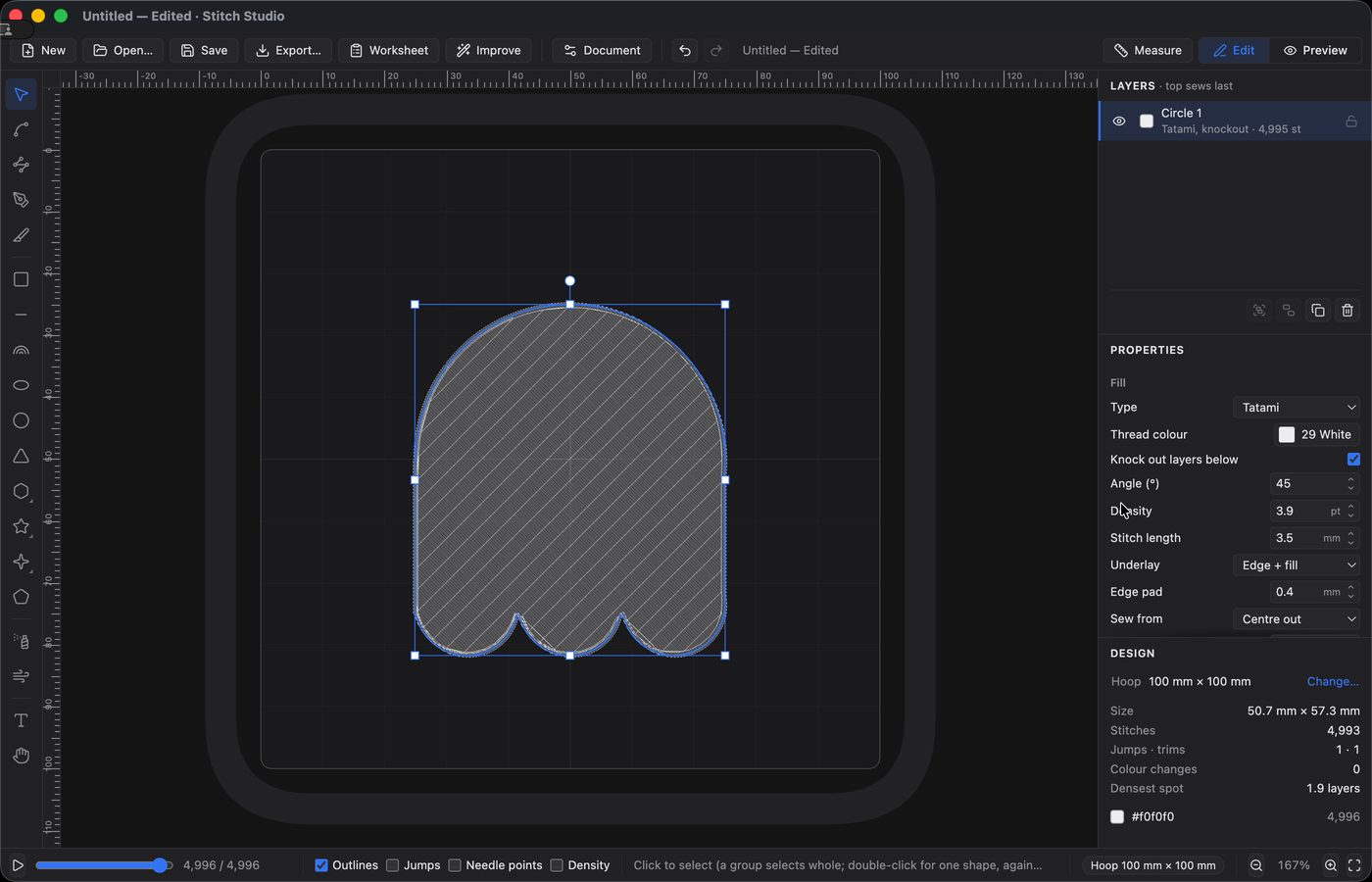
5. Set the body to white
Click the thread color and choose white from the thread list. The ghost is now a white tatami fill.
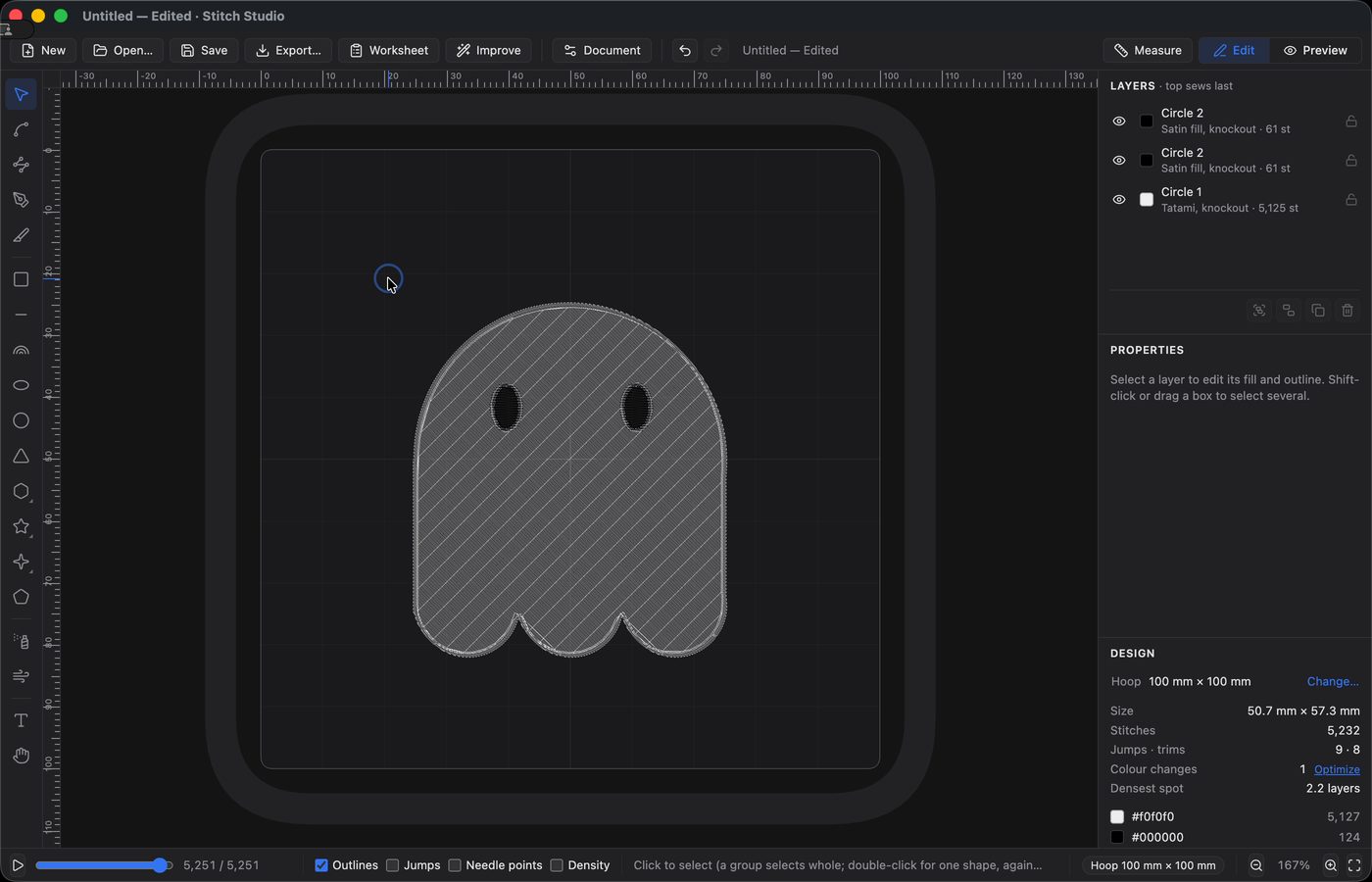
6. Add the eyes
Draw a small oval for one eye, change it to a black satin fill, then duplicate it for the other side and line the two up.
7. Draw the smile
Use the Pen tool to draw a short line, set its outline to black satin, then bend it into a curve with the Direct Select tool.
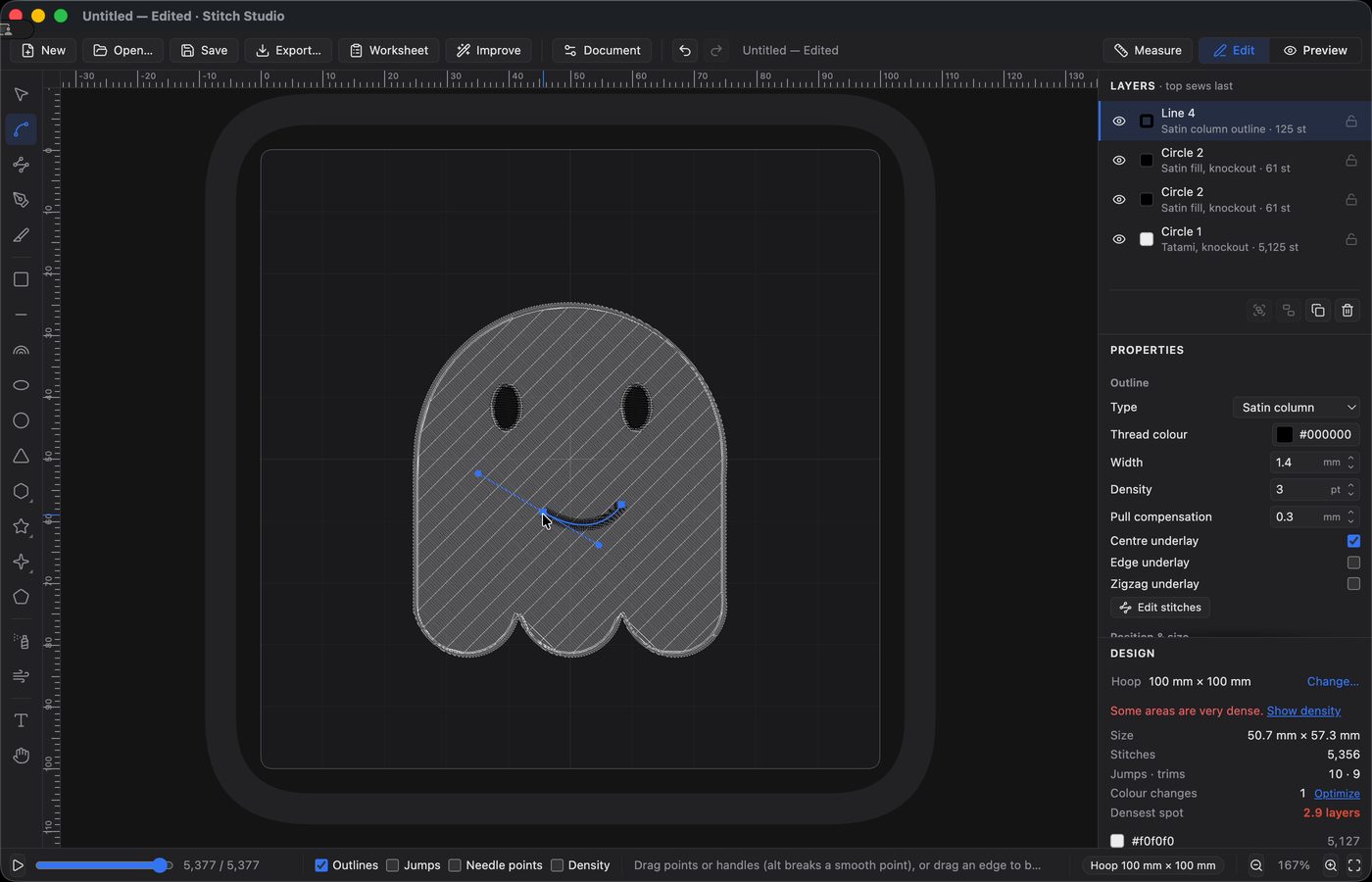
8. Add a border
Duplicate the ghost body, set the fill to none, and give it a black satin outline.
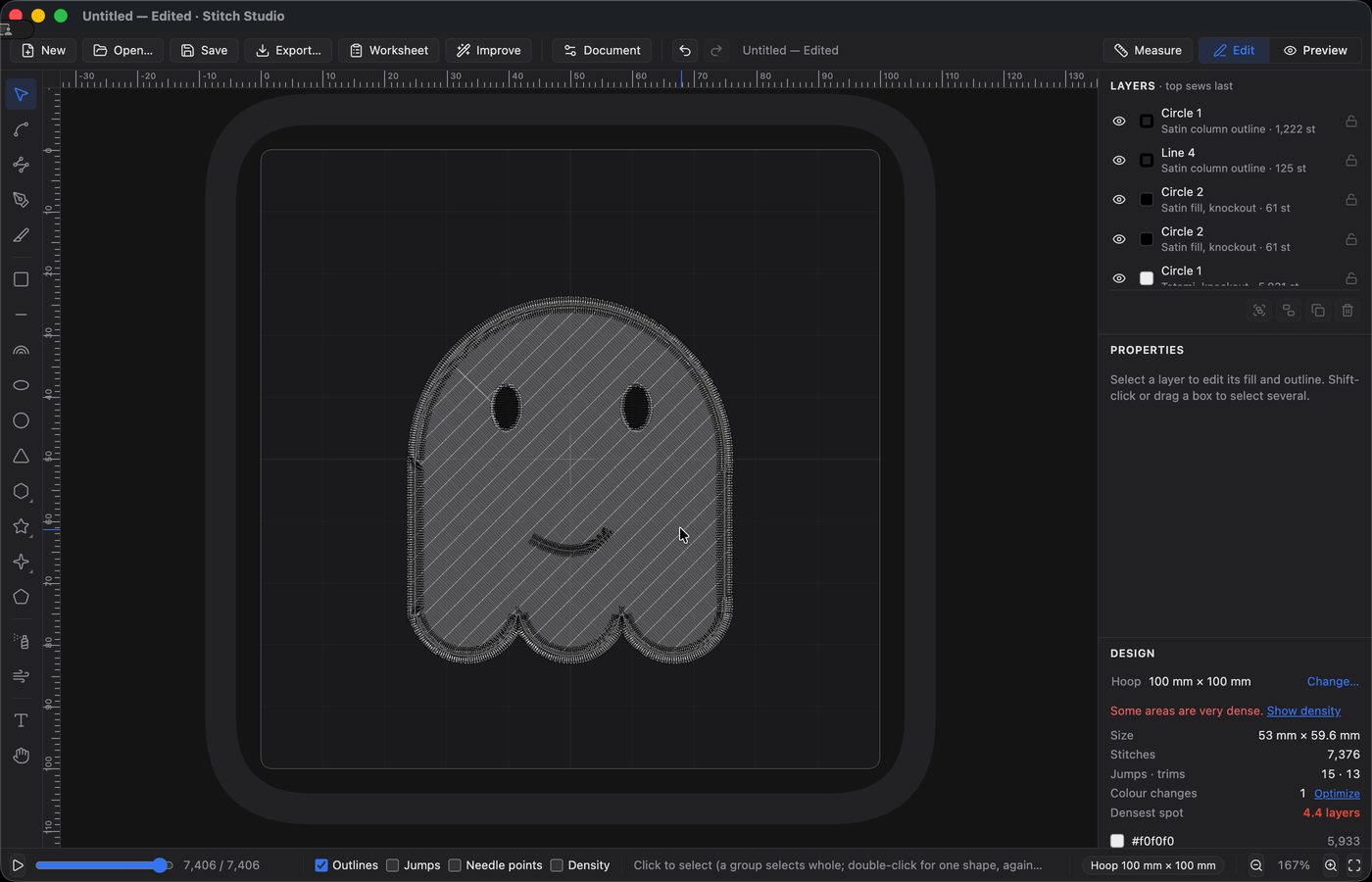
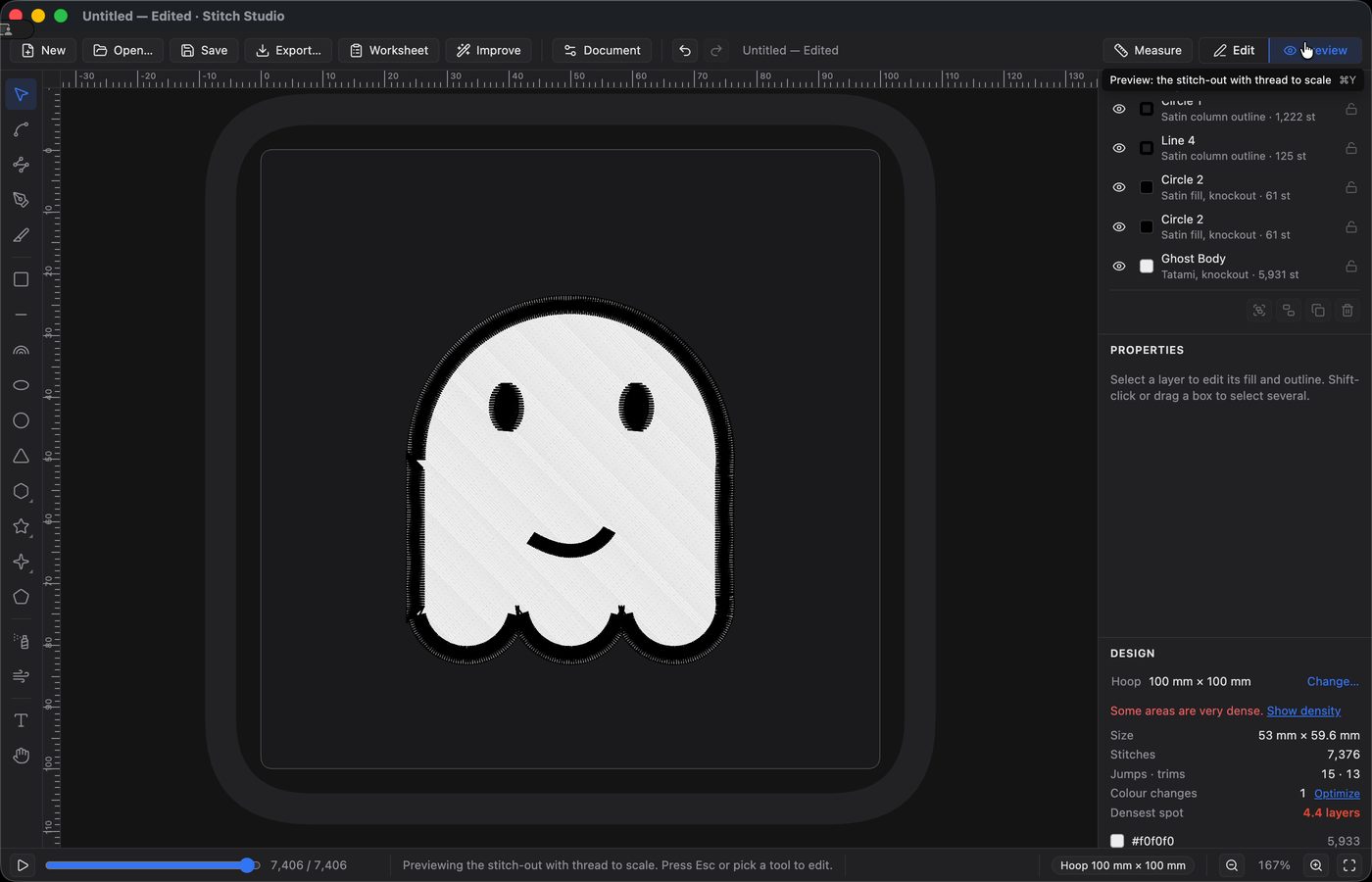
9. Check it in Preview
Switch to Preview to see the stitch-out with the thread to scale. It is a quick way to catch problems before going further. Look closely at the edges here: the border is a little jagged along the sides and hem. We’ll come back and fix that at the end.
10. Add the background circle
Draw a large circle over the ghost, then send it backward until it sits behind everything else.
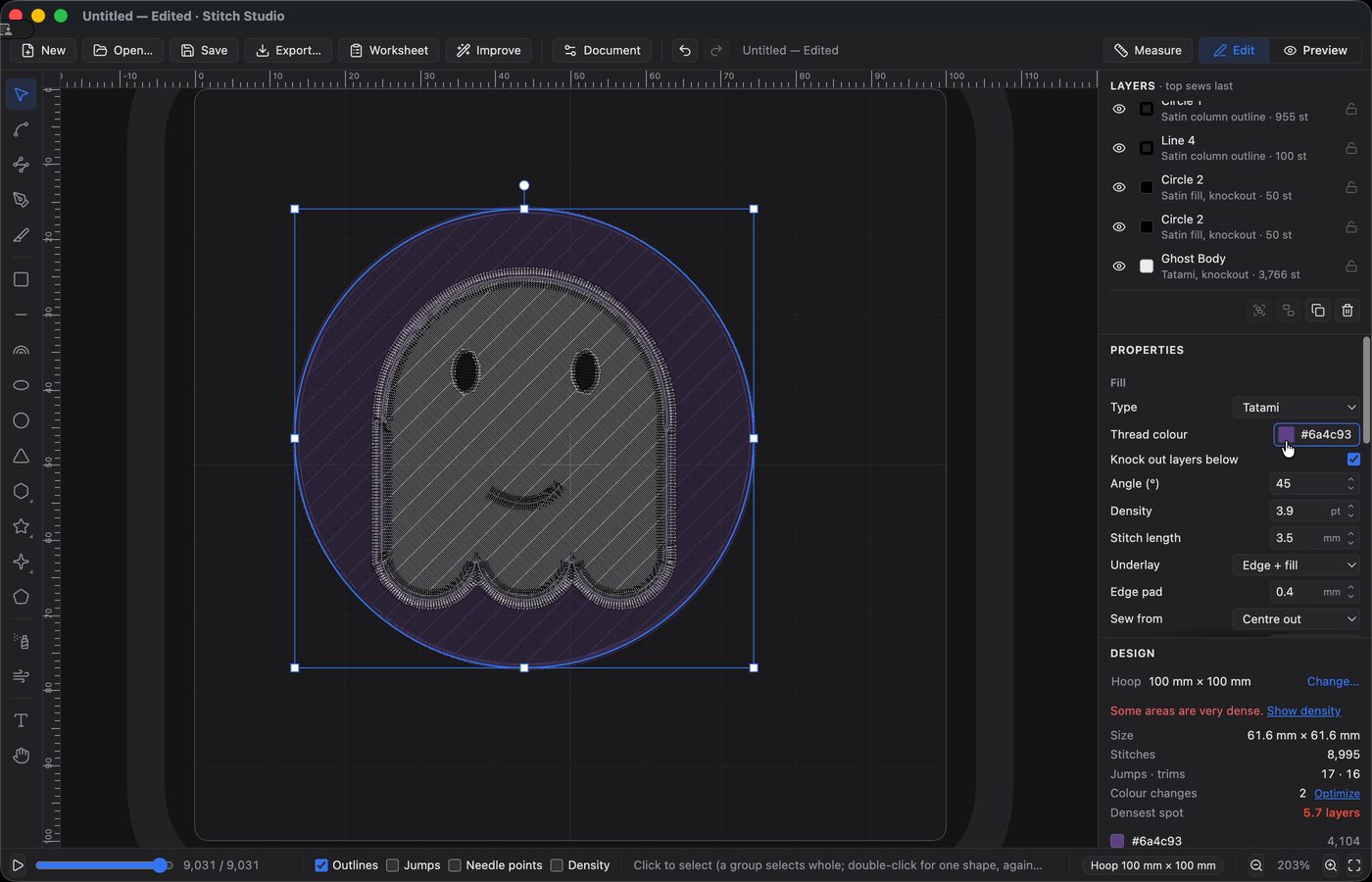
11. Color and center the background
Set the circle’s thread color to gold and its fill pattern to Waves, then align the circle and ghost on their horizontal and vertical centers.
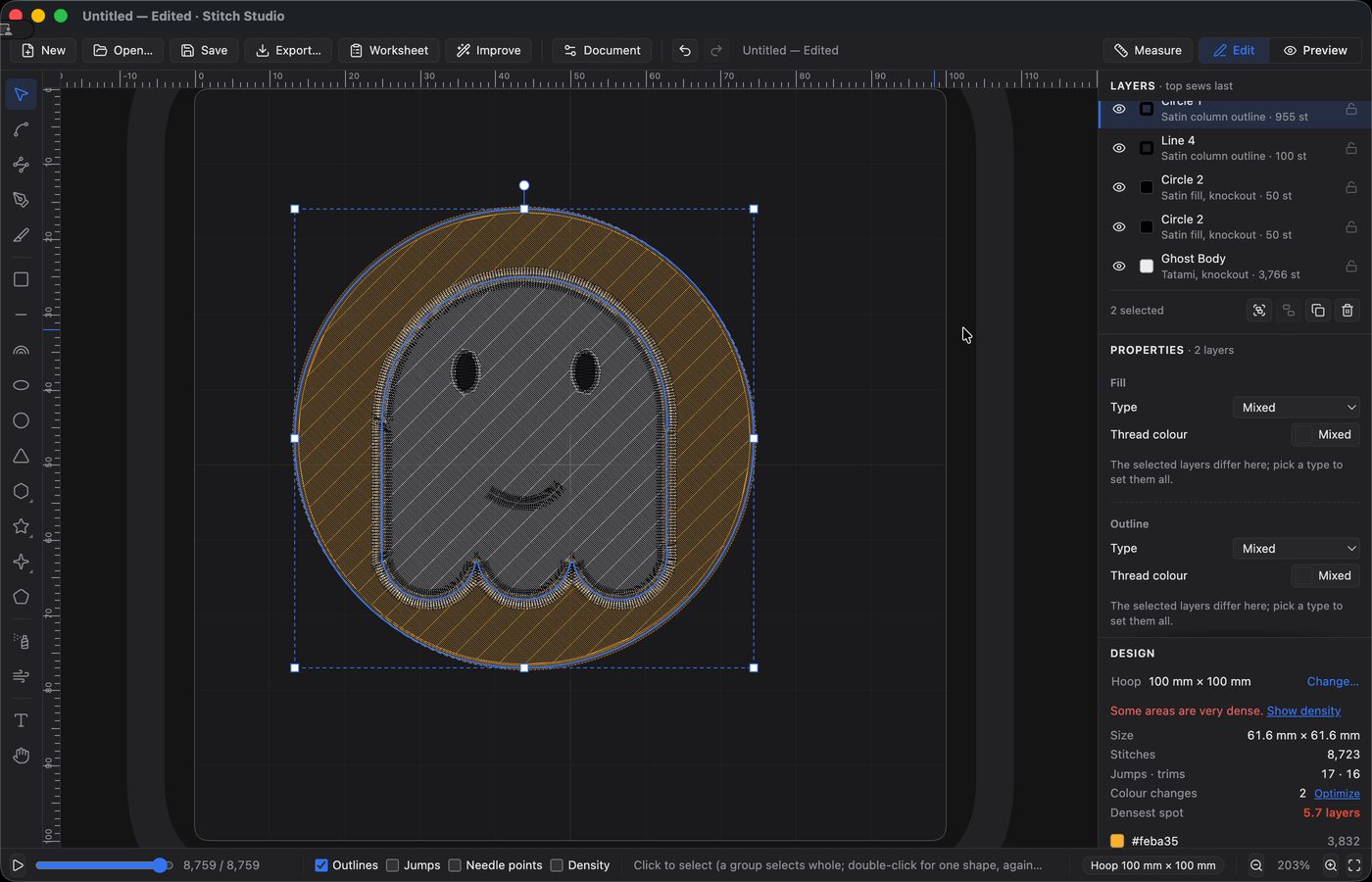
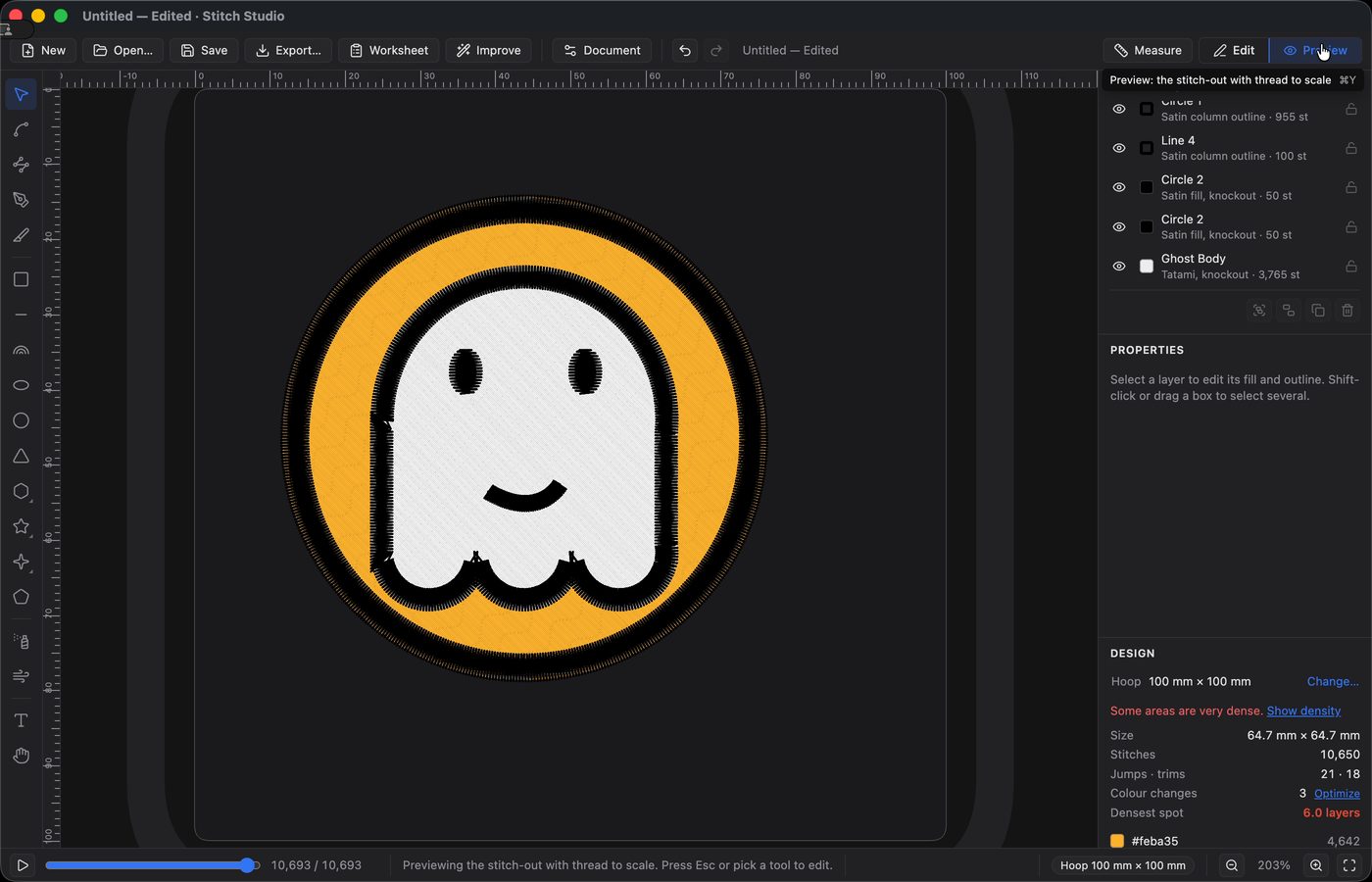
12. Add the outer border and preview again
Give the circle a black satin outline, then check the finished design in Preview.
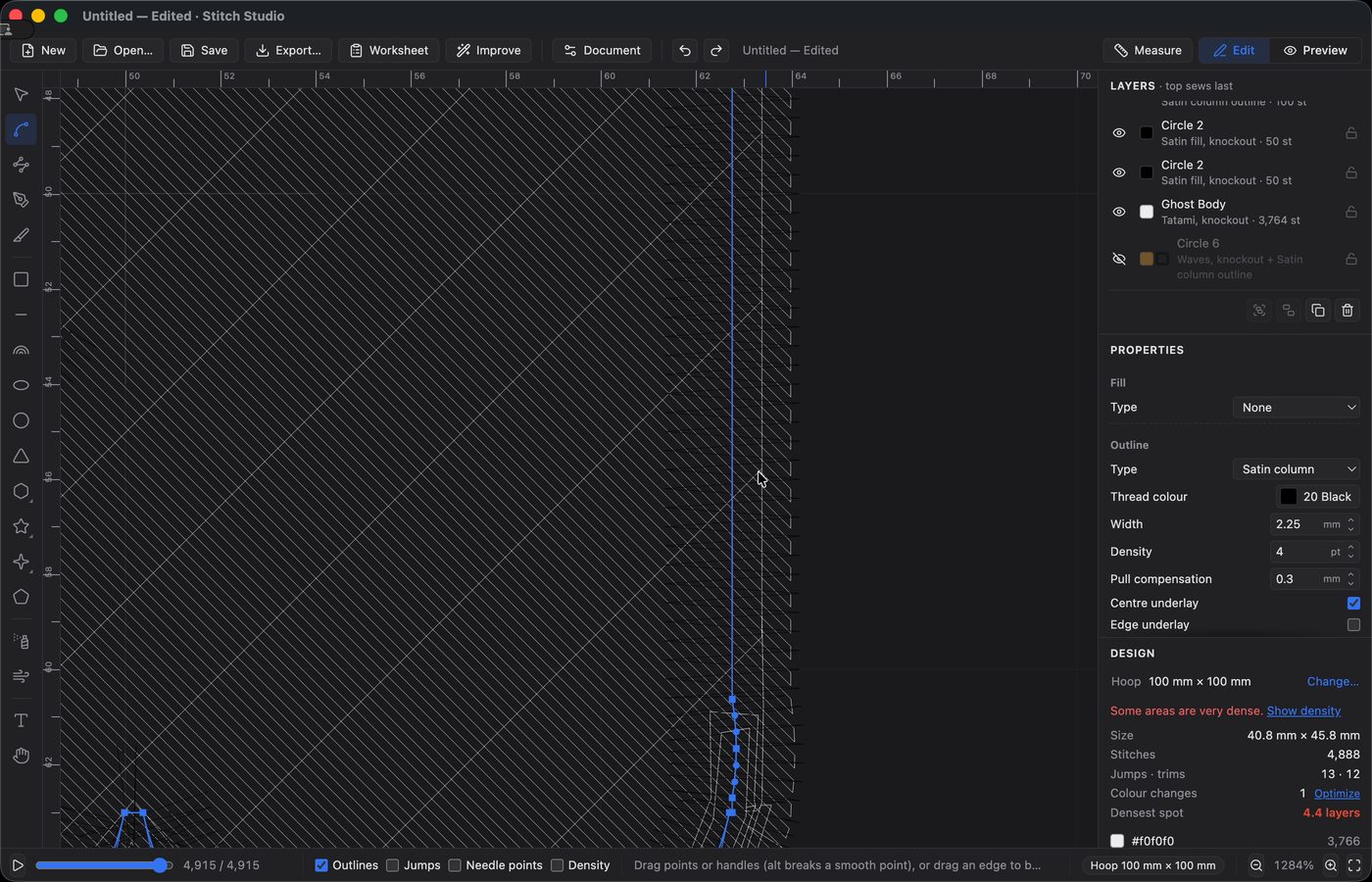
13. Clean up the jagged edges
Now for those rough edges from step 9. Hide the gold circle so it’s out of the way, zoom in on the ghost’s border, and switch to the Direct Select tool. Extra points bunch up along the outline, and each one can put a kink in the satin. Click the ones you don’t need and press Delete, then check that the line still follows the shape.
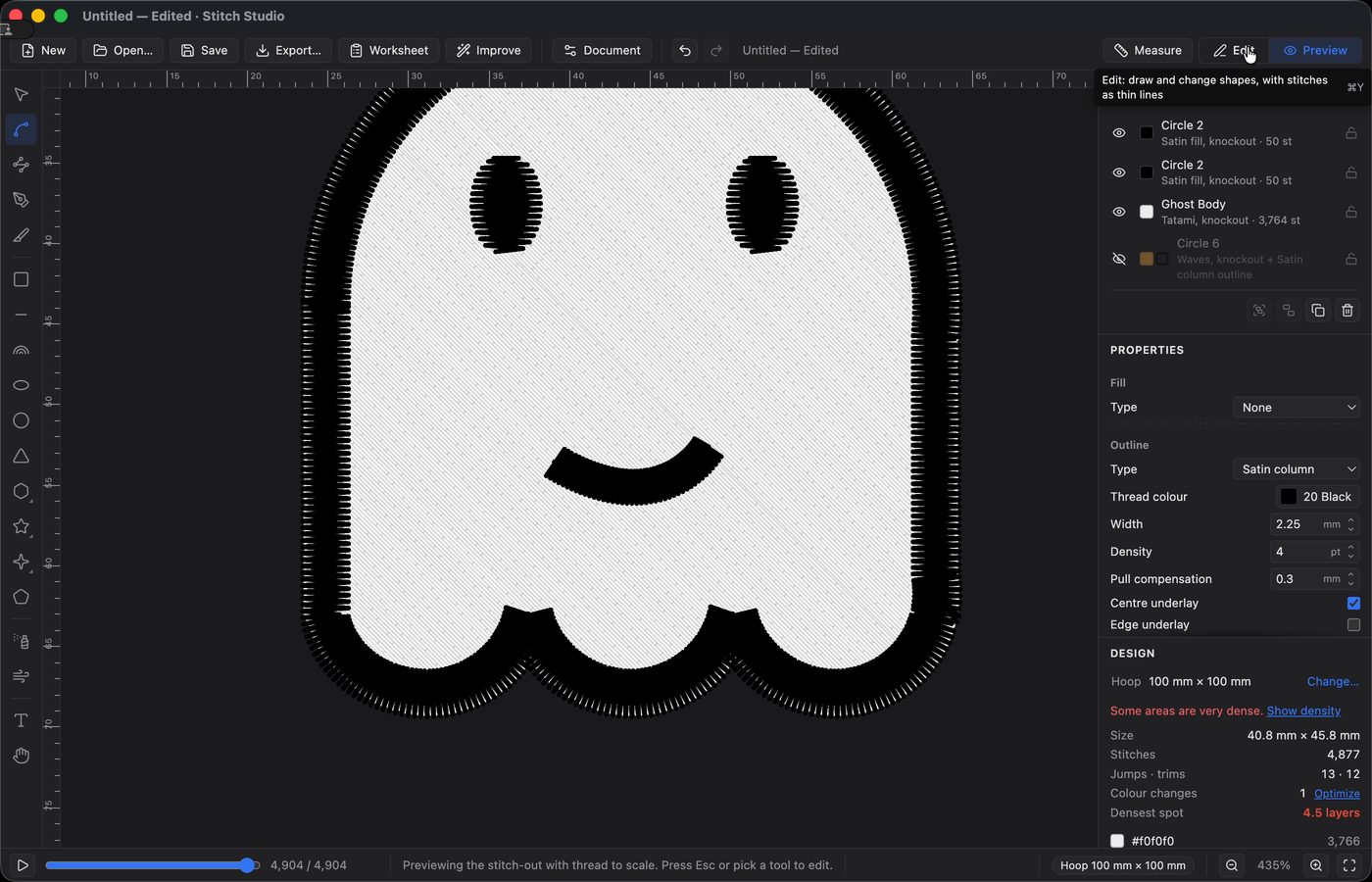
Switch back to Preview to check the result. With the extra points gone, the border runs smoothly around the sides and hem.
14. Scale it to size
Select everything and scale the whole design down to the size you want to stitch.
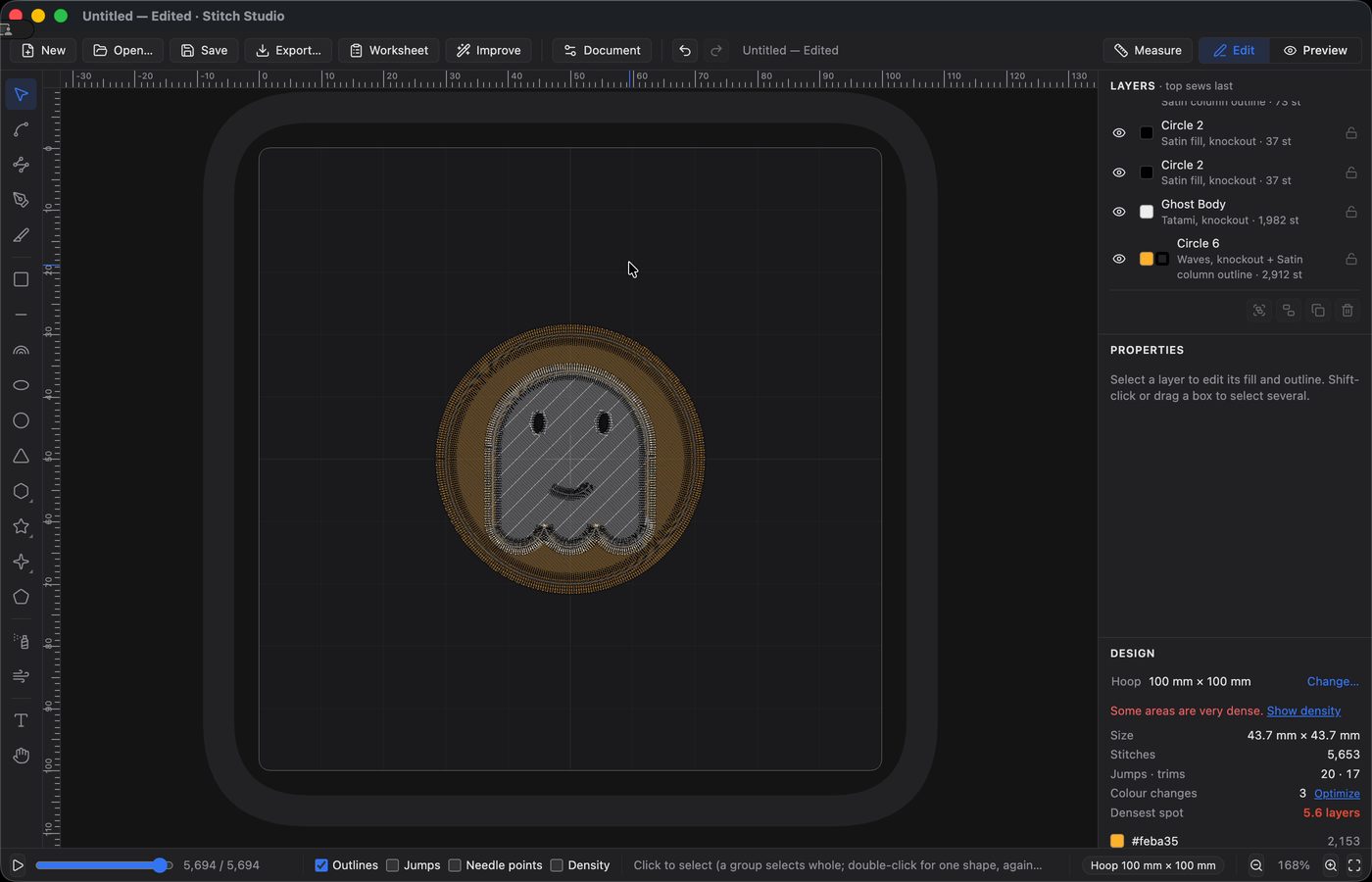
The exact settings for this design are below
| Layer | Settings |
|---|---|
| Circle 6 (fill) | 40.1 mm gold circle, Waves tatami 45°, rows 0.195 mm, 3.5 mm stitches, edge and fill underlay, no pull compensation |
| Circle 6 (outline) | Black 3 mm satin around the circle, density 0.4, center underlay, pull 0.3 |
| Ghost Body | 24.9 × 28.2 mm, white tatami 45°, rows 0.195 mm, 3.5 mm stitches, no randomness, edge and fill underlay, pull 0.4, knocks out the gold |
| Circle 2 (both eyes) | 2.4 × 3.9 mm each, black satin straight across, density 0.4, edge underlay, pull 0.3, sewn on top of the fill |
| Line 4 (smile) | Black 1.4 mm satin, density 0.3, center underlay, pull 0.3, sewn on top of the fill |
| Circle 1 (ghost border) | Black 2.25 mm satin around the ghost, density 0.4, center underlay, pull 0.3 |
A few of those choices are worth explaining:
- The hem is a gentle wave, not sharp points. A satin border fans and stacks at sharp inside turns.
- The eyes sew on top rather than knocking out, which saves six trims.
- Long, even fill stitches lie flatter than short jittered ones.
- The knockdown is optional, and only for textured fabric. Its open rows leave a jagged edge, so give it a running outline if you keep it.
Stitching it out
I stitched this directly on some thick cutaway stabilizer on my home brother embroidery machine. If I were to do this again, some fabric may have been useful to give this a bit more structure.
The critical part to support stitching out here was the fill underlay on the large wavy background, which helps give the design a little more structure, especially as we layer waves on top of it, you should also make sure that your stabilizer has tension in the hoop.